Clipboard Upload
Copy a screenshot or files, press a hotkey, and paste their remote paths into a Codex chat.
Running Codex on a remote server over SSH is convenient, but sharing local screenshots and files from Windows can interrupt the workflow. Saving a screenshot, uploading the file, and copying its remote path means repeating several manual steps just to add context to a chat.
Clipboard Upload simplifies this to copy, upload, and paste. Copy an image or files to the Windows clipboard, press Ctrl+Alt+U, and the app uploads them to the configured SSH server. The remote file paths are then placed on the clipboard, ready to paste into the remote Codex chat. Screenshots do not need to be saved manually first.
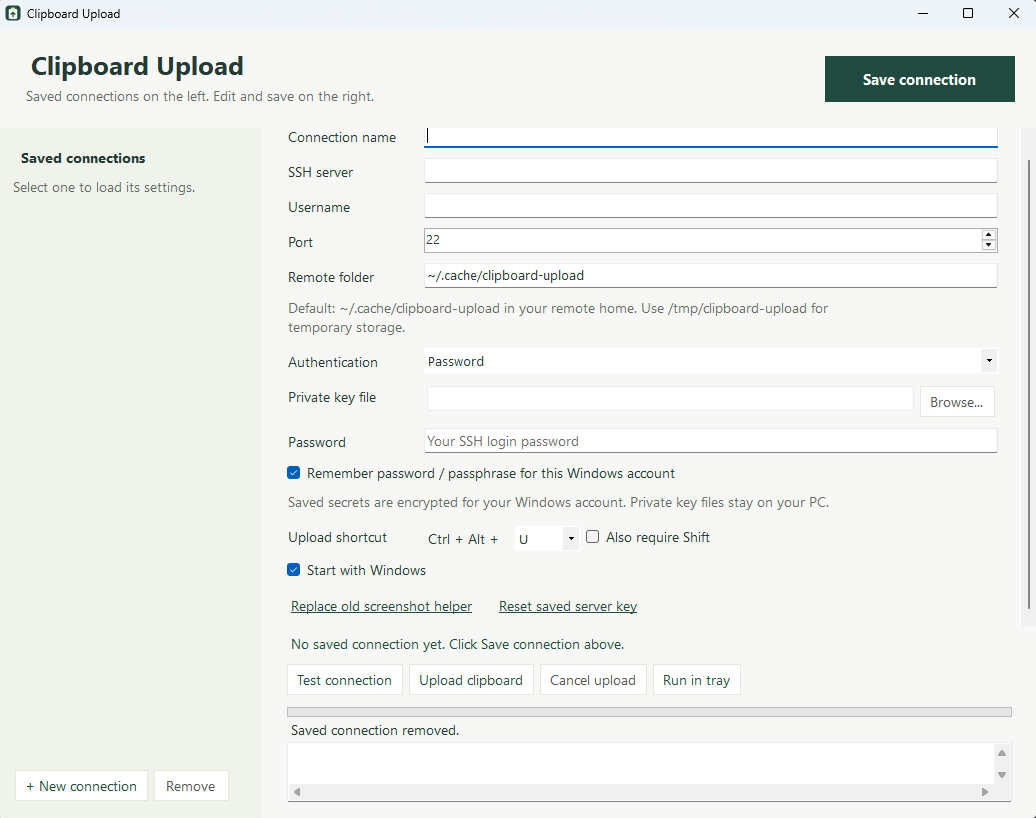
- Upload screenshots or one or more files over SFTP.
- Save multiple SSH connections with password or private-key authentication.
- Run from the system tray with a configurable hotkey and desktop shortcut.
The app works with compatible SSH/SFTP servers and does not require access to Codex itself. Version 0.3.0 is available for Windows x64, includes its runtime, and is released under the MIT License. This initial release is unsigned, so Windows may show a download or publisher warning.
Download for Windows · Release notes · Source and setup guide